Why Is My Printer Printing Symbols?

A printer prints symbols or gibberish when it receives data it can’t read. The usual causes are a corrupted job stuck in the queue, the wrong or a damaged driver, a printer language mismatch, or a faulty cable. Clear the queue first, then answer the questions below to find which one you have.

By Printer Test Page LabLast updated

Find why your printer prints symbols

Print the printer’s own settings or configuration page from its buttons or menu. Does that page print normally?

This page comes from the printer itself, not your computer. Your printer’s page on this site, or the brand steps further down, show how.

What does it mean when a printer prints symbols?

Your computer doesn’t send letters to a printer. It sends a stream of commands in a printer language, most often PCL or PostScript, that tells the printer where to put each mark. If that stream is damaged, cut short, or written in a language the printer doesn’t understand, the printer does its best with what it got. The result is random symbols, odd characters, or page after page of code. Xerox, for example, says gibberish is usually caused by the printer not having the PostScript language installed.[1] So the fix is almost never inside the printer. It is the job in the queue, the driver that builds the stream, the cable that carries it, or the file itself. A quick way to tell: print the printer’s own settings page. If that looks normal, the printer is fine.[2]

What causes garbled printing, and what fixes it?

What you seeLikely causeFix
Random symbols on many pages, from any appA corrupted job in the queue, or a damaged driverClear the queue on every computer, restart the printer, then reinstall the driver
Lines of code such as @PJL or %!PSPostScript sent to a printer without PostScriptUse the PCL driver, or the driver for your exact model
Garbled in different places each timeCable noise or a hub in the wayConnect directly with a USB cable of 3 m or less
Only one document, often a PDFThe file or its fontsPrint As Image in Adobe, or print a different file to compare
Readable text with a few wrong symbolsThe printer swapped in its own fontTurn off TrueType font substitution in the driver
Only the first job after the computer wakesA job corrupted during sleepPrint it again

Step 1: clear the stuck job

A damaged job can keep feeding garbage to the printer, and some printers will spit out page after page of it. Brother’s first step is to delete pending jobs on every computer that uses the printer, then turn the printer off for 15 seconds.[3] In Windows 11, the queue’s menu has Cancel all.[4] On a Mac, open Print Center and delete the jobs.[5] If a job refuses to go, clear the print queue with the spooler steps.

Step 2: check you have the right driver

Random characters often come from a generic driver, a driver for a different model, or one that has been damaged. Epson suggests checking the product name at the top of the driver window to make sure it matches your printer.[6] Canon lists printing from Windows without its own driver as a cause of unreadable characters.[7] If the name is wrong or the problem keeps coming back, remove the printer, delete the driver and install the current one from the maker’s site.[8][9]

Pages of code? PCL vs PostScript

PCL and PostScript are the two common printer languages. Many office lasers understand both, but plenty of home printers understand only one. If you install a PostScript driver for a printer that has no PostScript, the printer prints the commands as text instead of following them. Print the printer’s configuration report to see which languages it has.[1] Xerox’s workaround is to use the PCL driver,[10] and a Microsoft troubleshooting FAQ suggests switching between PostScript and PCL in either direction.[11]

Is the cable scrambling the data?

If the garbage lands in different places on each try, suspect the connection. Brother says to remove hubs, extensions and splitters and cable the computer straight to the printer.[12] Canon notes that a long USB cable can pick up electrical noise and recommends one of 3 meters or shorter.[13]

Wrong characters in one document or a PDF

When only one file comes out wrong, print a different document from a different app to confirm the printer is fine.[14] For a PDF, Xerox suggests turning on Print As Image in the Adobe print window’s Advanced settings.[15] If readable text has a few wrong symbols, the printer may be using its own built-in font instead of the document’s. On Canon’s Generic Plus LIPS4 driver, the fix includes turning off TrueType font substitution.[16] And if your text printed over old text, check the paper: reused sheets can look like garbled output.[17]
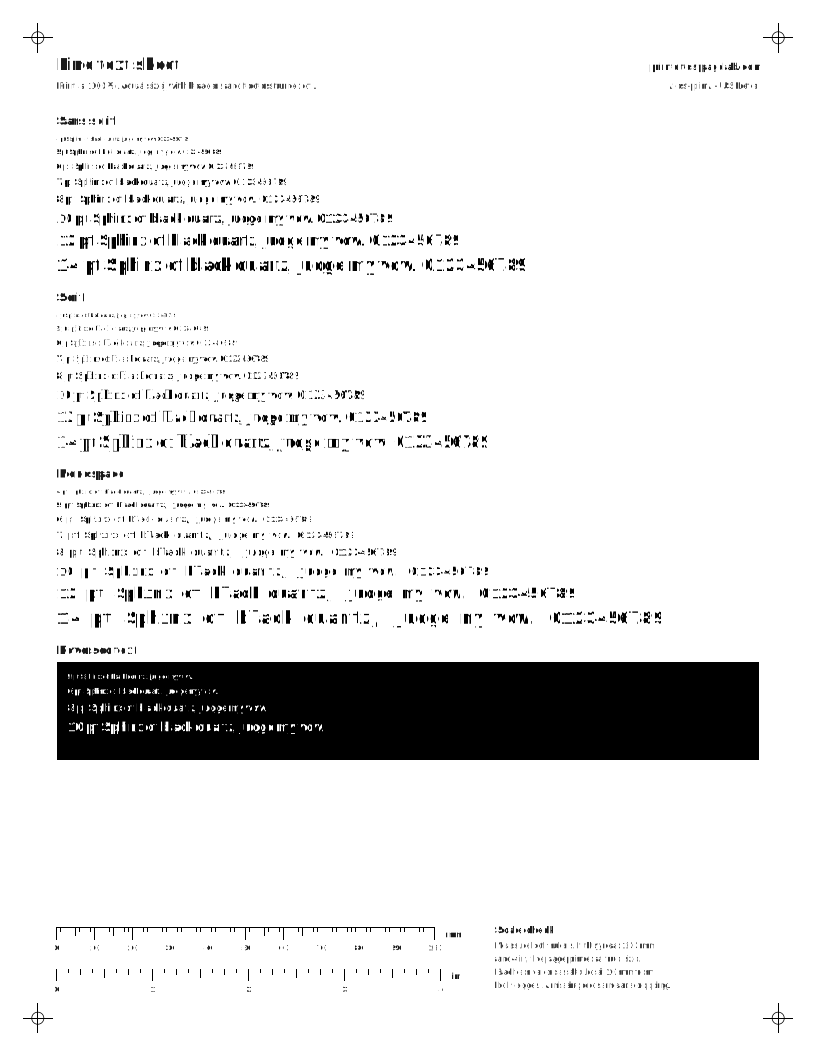
Check it with a text test page

Print the fine-text sheet from your browser after each fix. It is all ordinary text in sizes from large to tiny, so a driver or font problem shows straight away. If it prints cleanly but your document doesn’t, the problem is in that file or app.

Text test pages
Paper size

Set from your region. Change it if your tray holds the other size.

Download PDF
  • Scale: 100% or Actual size, not Fit to page
  • Headers and footers: off
  • Paper in the tray matches US Letter

What to look for: fine text sheet

  • 4 and 5 pt text should still be readable with a magnifier.
  • White text on black should not fill in.
  • Letters should not look doubled. Doubling points to head alignment.
Fine text test sheet with sans serif, serif and monospace text from 4 to 14 points and small white text reversed out of black.
Sans, serif and monospace text from 4 to 14 pt, plus white text on black. Shows sharpness and fill-in. Light ink use.

What Brother, Epson, Canon and Xerox say

Brother printer printing gibberish

  1. Delete pending jobs on every computer that uses the printer, then turn it off for 15 seconds.
  2. Print a different document from a different app.
  3. Connect straight to the printer, with no hub, extension or splitter.
  4. Delete the driver and reinstall Brother’s software.

Source: [3][14][12][8]

Epson printer printing gibberish

  1. If only the first job after the computer wakes is garbled, print it again.
  2. Check the product name at the top of the driver window matches your printer.

Source: [18][6]

Canon printer printing gibberish

  1. Install Canon’s own driver; printing without it gives unreadable characters.
  2. Use a USB cable of 3 m or shorter.
  3. On Generic Plus LIPS4, turn off TrueType font substitution if symbols are wrong.

Source: [7][13][16]

Xerox printer printing gibberish

  1. Print a Configuration Report and check PostScript is installed.
  2. If not, use the PCL driver instead of PostScript.
  3. For PDFs, turn on Print As Image in Adobe’s Advanced settings.

Source: [1][10][15]

HP’s support pages did not load for our checks, so HP steps are not listed here. See the HP printer page for its reports.

Fixed? Confirm it

Print a test page from your computer, then the document that failed. If the printer prints its own test page but still won’t print documents normally, see test page prints, documents don’t.

Questions people ask

Why is my printer printing random symbols?

Usually because the printer is receiving data it can’t read: a corrupted job stuck in the queue, the wrong or a damaged driver, a driver for a printer language the printer doesn’t have, or a cable that scrambles the data. Clear the queue first, then check the driver.

Why does my printer print pages of code?

Pages that start with commands like @PJL or %!PS mean the computer sent a printer language, usually PostScript, that the printer can’t interpret, so it prints the commands as text. Cancel the job and switch to the PCL driver or the driver for your exact model.

How do I stop a printer printing gibberish?

Cancel every job in the queue, or turn the printer off, to stop the pages. Then delete pending jobs on every computer that prints to it, restart the printer, and reinstall the correct driver before printing again.

Why does only my PDF print strange characters?

A single garbled PDF usually means its fonts aren’t being handled correctly. In Adobe Acrobat or Reader, open Print, then Advanced, and turn on Print As Image. That sends the page as a picture instead of text.

Sources

  1. [1] Printing Gibberish, Strange Symbols. or Characters (Xerox Support)Xerox says gibberish and strange symbols are usually caused by the printer not having the PostScript language installed. A Configuration Report lists the installed page description languages.
  2. [2] Blank pages when printing from Windows or Macintosh (Brother USA Support)Brother's way to split printer from computer: print the Printer Settings page from the machine itself (press OK or GO three times on many models). If it prints correctly, settings or a corrupt driver on the computer are the likely cause.
  3. [3] Random symbols, garbled text, garbage print, or prints unexpectedly (Brother USA Support)Brother's first step for random symbols is to delete pending print jobs on every computer that uses the printer, then turn the printer off for 15 seconds and back on.
  4. [4] Troubleshooting offline printer problems in Windows (Microsoft Support)In Windows 11, the print queue’s ... (more) menu has Cancel all for pending jobs.
  5. [5] Solve printing problems on Mac (Apple Support)On a Mac, Print Center shows each printer’s jobs; Delete Job removes one and Resume restarts a paused printer.
  6. [6] Incorrect Characters Print (Epson)Check the product name at the top of the driver window to confirm you are using the driver made for your exact printer.
  7. [7] Unreadable Characters Are Printed (Canon)Canon lists printing from Windows without Canon's own driver installed as a cause of unreadable characters; install the supplied driver and print again.
  8. [8] Random symbols, garbled text, garbage print, or prints unexpectedly (Brother USA Support)If garbled printing continues, Brother says to delete the printer driver and reinstall its software from Brother's support site.
  9. [9] Fix printer connection and printing problems in Windows (Microsoft Support)Microsoft's printing troubleshooter says most printers need the latest driver to work well, and lists installing it as a fix step.
  10. [10] Fault Code 016-749: PostScript Error (Xerox Support)When a printer reports a PostScript error, Xerox's workaround is to use the PCL driver instead of the PostScript driver.
  11. [11] FAQ about printer issues - Dynamics GP (Microsoft Learn)Microsoft's printer troubleshooting FAQ (written for Dynamics GP) suggests switching from a PostScript driver to the PCL driver, or from PCL to PostScript.
  12. [12] Random symbols, garbled text, garbage print, or prints unexpectedly (Brother USA Support)For USB or parallel connections, remove hubs, extensions, splitters and other pass-through devices and cable the computer straight to the printer.
  13. [13] Identifying and Isolating Problems (Canon)If different parts of the text are garbled each time, the USB cable may be too long and picking up electrical noise; Canon recommends a USB cable of 3 meters or shorter.
  14. [14] Random symbols, garbled text, garbage print, or prints unexpectedly (Brother USA Support)Print a different document from a different app to rule out a problem with one file or one program.
  15. [15] PostScript Errors, Gibberish Print or Blank Pages when Printing (Xerox Support)For gibberish or PostScript errors when printing a PDF, Xerox says to turn on Print As Image in the Adobe print window's Advanced settings, then reinstall the driver if needed.
  16. [16] [Windows] Printing text and symbols correctly (Canon)Wrong text or symbols can appear when the printer uses its own built-in font instead of the document's font. For Canon's Generic Plus LIPS4 driver, the fix includes turning off substitution of TrueType fonts.
  17. [17] Random symbols, garbled text, garbage print, or prints unexpectedly (Brother USA Support)Before troubleshooting garbled output, check the paper itself: reused, mostly blank sheets can make your document print over text that was already there.
  18. [18] Incorrect Characters Print (Epson)Epson notes that the first job sent after a computer wakes from sleep can come out garbled; printing the document again is the fix.

Checked 2026-10-13.