Faded prints usually mean the printer is set to draft, ink saving or the wrong paper type, so check the print settings first. If only black or one color is weak, that ink is low or clogged. Answer the questions below for steps that fit your printer and ink.
If colors print but black is pale or missing, the black supply or the black nozzles are at fault. Some drivers also make black from color inks in grayscale mode, which looks washed out.
What to do
Check the black level and make sure the cartridge is seated or the tank valve is open.
In the print dialog, try “black ink only” instead of grayscale.
Run a nozzle check. If black has gaps, run one cleaning and check again.
Print the black test page to confirm.
Because you use third-party ink
Pigment black in some third-party cartridges dries faster in the nozzles. If black keeps clogging, try an original black cartridge.
A single weak color means that ink is low, not reaching the head, or has blocked nozzles. The color checker on the color test page can tell you which one from the symptoms.
What to do
Check the level for that color.
Print its single-color test page.
Run a nozzle check, then one cleaning if it shows gaps.
Stop at your manual’s cleaning limit and rest the printer overnight.
Because you use third-party ink
If the weak color is a refilled or compatible cartridge, the chip may report ink that is not there. Check the ink window or weigh the cartridge if your manual allows.
Drawn examples, not scans of real prints. Compare them with your printout to pick the closest match.
Faded printEvery color is pale: often draft mode, ink saving or low ink.One color missingA whole color is absent (here yellow), so other colors look wrong too.Clogged nozzlesThin white lines in one color only (here magenta).
What makes a printer print faded or light?
Faded prints come from three places: a setting that cuts back the ink, a supply that is low or blocked, or paper that does not sit flat. Which one depends on what is faded. Find the row that matches your page, print the test it names, then try the fix.
What you see
Likely cause
Test to print
First fix
Everything pale on an inkjet, text and color alike
Draft or economy quality, or the wrong paper type setting[1][2]
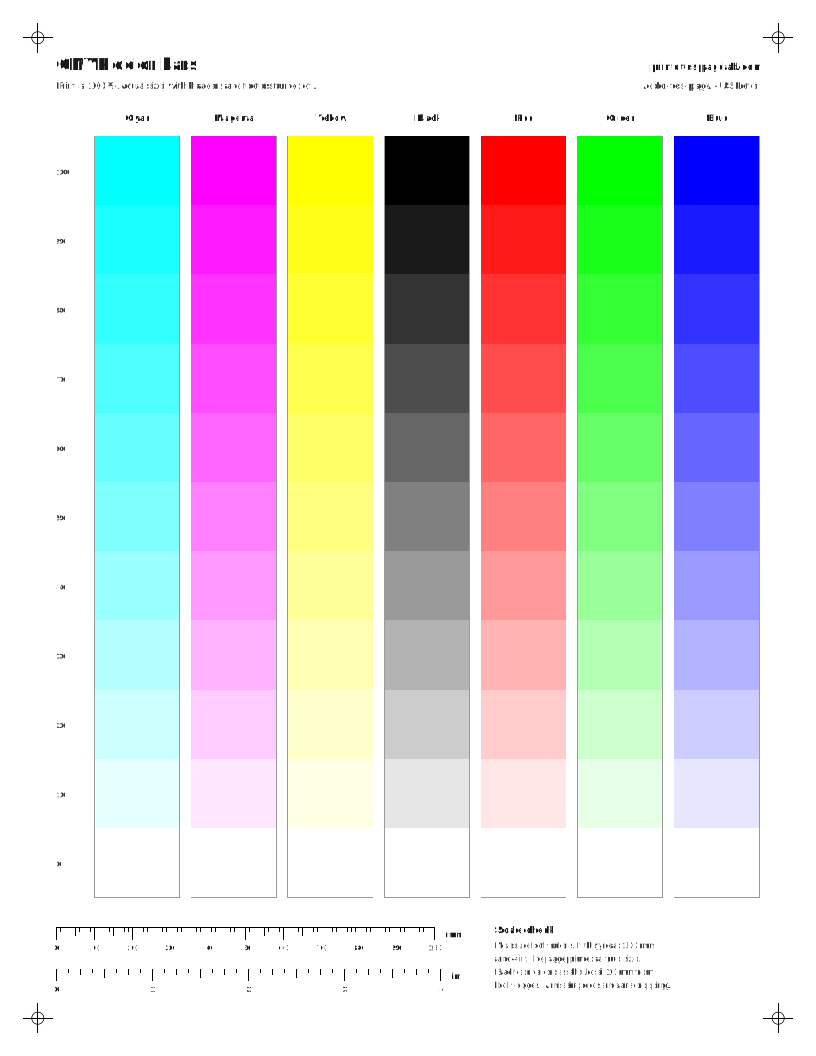
This is the fastest way to narrow it down. Print the CMYK color bars. If every column is equally pale, the cause is a setting or the paper. If one column is paler than the rest, it is that ink.
Which settings make prints light?
Four settings can make a whole page print light even when the ink is fine. Check them in the print dialog before you clean anything, because a cleaning cycle uses ink and will not fix a setting. If changing them does not help, the cause is the ink or toner itself.
Draft, Fast or Economy quality. Uses less ink on purpose.[1]
Paper type. Plain paper selected for photo paper, or the other way round, changes how much ink is used.[2]
Grayscale. Some drivers mix black from colors in grayscale mode.[8][9]
Why is printing faded after a refill or new cartridge?
Faded or missing color right after a change often means a seal was left on, the cartridge is not fully seated, or air entered an ink tank line.[14][15] Remove and reseat the cartridge, check the tank valve, run one cleaning and print a nozzle check.[16][11]
Why is my printer printing faded when the ink is full?
Full ink with faded prints usually means clogged nozzles, a draft or economy setting, or the wrong paper type. On refillable tanks, air in the line after a refill can also starve the head until a cleaning pulls ink through.
Why is my printer not printing black?
Black can be empty or clogged while color still works, because they use separate cartridges or nozzles. Check the black level, try “black ink only” in the print dialog, then run a nozzle check.
Why is my printer not printing color?
If no color prints at all, check that the print dialog is not set to grayscale or black only. If one color such as magenta, yellow or cyan is missing, the usual causes are low ink, a clog, or a cartridge not seated. Print the single-color test page for that ink to confirm, then run a nozzle check.
Why is my laser printer printing light?
Toner save mode, a low density setting or a nearly empty cartridge. Rocking the cartridge gently often gives a few better pages, which confirms the toner is low.
[4]Faint (MFC-L2700DW and related models) (Brother)Brother mono lasers (HL-L2300 to MFC-L2740 family): if the whole page is too light, Toner Save Mode may be on. Turn it off in the machine menu or the printer driver.
[5]Faint, light, faded, or blank printed pages (Brother USA Support)Brother lasers: for faint or faded pages, raise the print density in the printer driver (Advanced > Other Print Options > Density Adjustment on Windows).
[6]HP LaserJet Pro M304-M305, M404-M405 User Guide - Resolving print quality problems (HP)HP LaserJet Pro M404 family, light or faded print on the whole page: reprint, remove and shake the cartridge, make sure EconoMode is off (mono models), check the cartridge is installed correctly, check its life on a Supplies Status Page, then replace it.
[7]Faint (MFC-L2700DW and related models) (Brother)Brother’s first step for faint print: take out the drum and toner assembly and gently shake it from side to side to spread the toner evenly. If the machine says Replace Toner, fit a new cartridge.
[10]Faint Printout or Printout Has Gaps (L4260 User's Guide) (Epson)Epson’s fixes for faint printouts or gaps: run a nozzle check and clean if needed, check the ink levels, match the paper type setting to the paper, align the print head and adjust the print quality.
[15]Faint Printout or Printout Has Gaps (L4260 User's Guide) (Epson)Epson ink tank printers: if you printed with the ink too low to see, refill the tanks to the upper lines and run Power Cleaning to replace the ink inside the ink tubes. Power Cleaning uses a lot of ink.
[16]Canon : Inkjet Manuals : G5000 series : 1366 (Canon)Canon G-series tank printers with an ink valve: support code 1366 means the ink valve is closed. Open it by tilting the ink valve lever to the right.