Lines on a laser printer come from toner, the drum, a roller or the fuser, not from clogged nozzles, so inkjet cleaning will not help. Answer the checker below, print the laser uniformity page, and if marks repeat down the page, measure the gap. The ruler matches it to a part using the makers’ tables.
A faint copy lower on the page means toner from the previous turn of the drum or fuser was not fully cleared. The paper type setting can cause it, and so can a worn drum.
What to do
Check the paper type setting matches the paper.
Print the two-page ghosting and drum refresh test. Faint text inside the 40% boxes points to the drum; inside the empty outlines it is ghosting.
Note how far below the original any ghost appears.
Compare that distance with the repeat-defect ruler. A match to the drum or fuser points to the part to replace.
Vertical light streaks in every field usually mean low toner or a dirty part along the paper path.
Dark lines or specks that repeat down the page come from a roller. Measure the gap on the repeat-defect page.
What to look for: repeat-defect measuring page
Find a mark that repeats down the page.
Use the side scale to measure from one mark to the next, then enter the distance in the repeat-defect ruler.
What to look for: color laser repeat-defect set
Look for marks that repeat down a page, and note which color page they are on.
Measure the gap between repeats with the side scale and enter it in the repeat-defect ruler.
A mark on every page points to a shared part such as the fuser or transfer belt; a mark on one page points to that color’s cartridge or drum.
What to look for: ghost detector (ghosting and drum test)
Print both pages in one job, in order.
Faint text inside a 40% box on page 2 means the drum is not refreshing between pages.
Faint text inside an empty outline on page 2 is ghosting from the fuser or drum.
What to look for: laser ghosting test
Look for faint repeats of the black squares and letters lower on the page.
Note how far below the original each ghost appears. That distance points to the part involved.
What to look for: blank page
The middle of the page should stay perfectly white.
Gray haze, dots or lines in the empty area point to the drum, toner or rollers on a laser printer.
Smudges or roller marks show dirty feed rollers or ink inside the printer.
What to look for: black and white test page
The solid black block should be even, with no white lines or streaks.
You should be able to tell every gray step apart. Steps that merge at the dark end mean heavy ink or toner.
Small text should be sharp, not fuzzy or doubled.
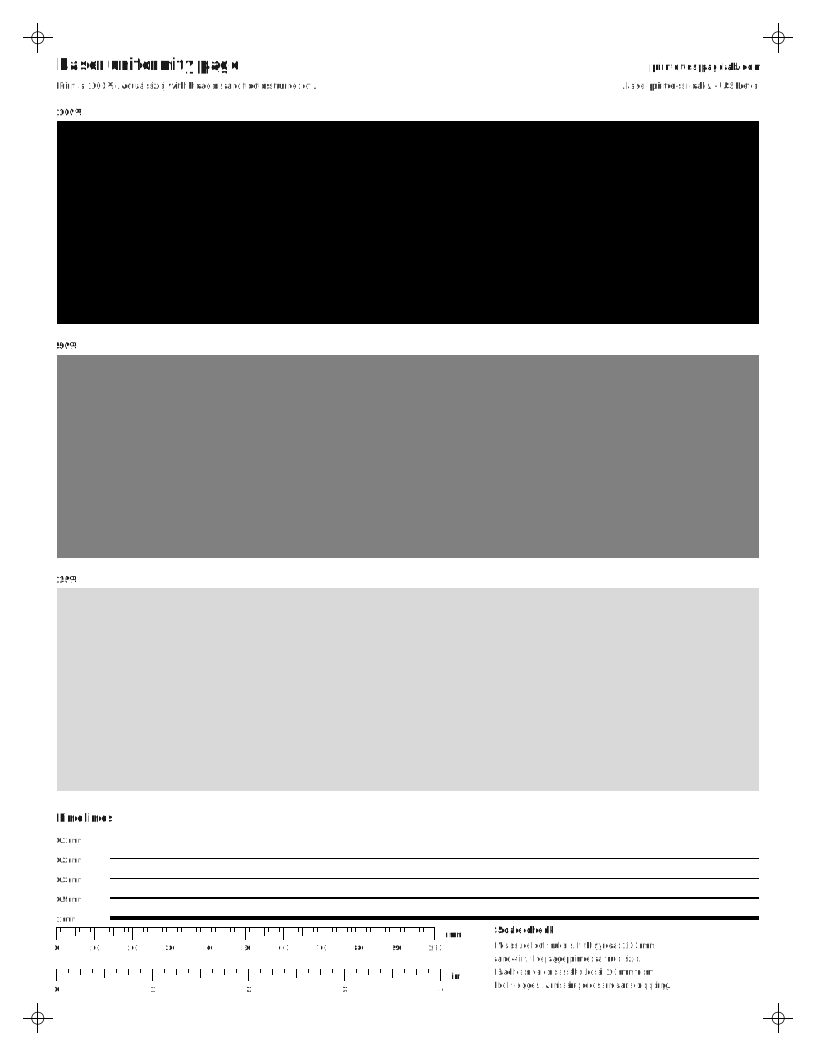
Full-width black, gray and light-gray fields. Vertical streaks, light bands and specks show clearly. Heavy ink use.A light tint field with a millimetre scale down the side. Measure the gap between repeating marks. Moderate ink use.Four full pages at 40% cyan, magenta, yellow and black, with a millimetre scale. Marks that repeat show up in the color that causes them. Heavy ink use.Prints 4 pages, in order.Page 1 prints solid text in each color. Page 2 prints boxes in the same spots: a 40% fill shows drum refresh problems, an empty outline shows ghosting. Moderate ink use.Prints 2 pages, in order.Black shapes at the top and a light gray field below. Faint copies of the shapes in the gray area are ghosting. Moderate ink use.Nothing but the edge rulers. On a laser printer, any toner in the empty area is background, spots or streaks from the drum or rollers; on any printer it checks paper feed. Light ink use.Gray step ramp, a solid black block, line weights and text from 4 to 14 pt. Moderate ink use.
Laser uniformity pageUS Letter · true size
Repeat-defect ruler
Print the repeat-defect page, find a mark that repeats down the sheet, and measure from one mark to the same point on the next.
We compare within 3 mm, because a ruler reading by eye is rarely closer than that.
Enter a distance to see matches.
Tables we have verified so far:Brother (support.brother.com), HP (hp.com). Distances differ by model, so a match is a strong hint, not proof. Your manual’s repetitive-defect table is the final word.
Steps for your printer brand
Exact menu steps from each maker’s manuals, by model, with sources.
Drawn examples, not scans of real prints. Compare them with your printout to pick the closest match.
Laser streaksA light streak and a dark line running down the page.Repeating spotsThe same mark at an equal gap down the page. The gap names the part.GhostingA faint copy of the image repeats lower on the page.
How do I measure a repeating defect?
Print the repeat-defect measuring page from the picker above. Its light gray field makes marks easy to see. On a color laser, print the four-page CMYK repeat set instead: a mark that shows on only one color page points to that color’s cartridge or drum.[1]
Find one mark, then the next copy of it lower on the page.
Read the distance on the side scale, or measure with a ruler from the top of one mark to the top of the next.
Enter it in the ruler above. If there is no match, look up the repetitive-defect table in your printer’s user guide. The distances differ from model to model.[2][3]
What do different laser printer streaks mean?
The direction and color of a line on a laser printer usually point to one part. Toner printers build the page on a drum and melt it on with a fuser,[4][5] so these faults don’t happen on an inkjet. If you are not sure which kind you have, the inkjet vs laser guide explains the difference.
What you see
Usual cause
Sheet to print
Light or white vertical streak in the same place on every page
Low or unevenly spread toner, paper scraps or dust near the drum, or a dirty laser scanner window[6][7][8]
Brother’s support pages, for example, tie 94 mm spots on many of its color lasers to the drum unit[17] and 29 mm spots to the toner cartridge.[18] Lexmark’s guides list different distances for each printer family, so always check the table for your model.[2] Two-page ghost test: text showing inside the 40% boxes on page 2 means the drum is not refreshing, while text inside the empty outlines is ghosting.
Questions people ask
Why is my laser printer printing lines?
Light lines usually mean low toner or something blocking the laser’s path to the drum. Dark lines usually mean a scratched drum or a dirty roller. Marks that repeat at a fixed gap point to a specific roller, which you can identify by measuring the gap.
What is a laser printer test page?
A laser printer test page uses large flat areas of gray and black instead of the fine nozzle patterns an inkjet test needs. Flat fields make streaks, haze and repeating marks easy to see, and a printed scale lets you measure the gap between repeats to identify the part.
What causes laser printer ghosting?
Toner left on the drum or fuser from one turn shows up faintly on the next. The wrong paper type setting can cause it, as can a worn drum or fuser. The distance between the original and the ghost points to the part.
Can I use an inkjet test page on a laser printer?
You can, but it will not tell you much. Inkjet pages look for clogged nozzles, which laser printers do not have. The laser set here uses large flat fields and a measuring scale, which show toner and roller faults clearly.
[2]B3340, B3442, M1342, MS331, MS431, MS439 Printers User's Guide - Repeating defects (Lexmark)Lexmark B3340/B3442/M1342/MS331/MS431/MS439 repeat distances: imaging unit 96 mm or 37.7 mm; toner cartridge 43.5 mm or 37.5 mm; transfer roller 52 mm; fuser 79.8 mm or 62.5 mm. Transfer roller or fuser matches mean contact Lexmark support.
[4]How LaserJet Printers Work: The Science Behind Crisp, Fast Printing | HP New Zealand (HP)HP: the laser removes charge from parts of the drum to form a latent image, and charged toner is attracted to the drum. A second electrical charge moves the toner onto the paper. Heat and pressure in the fuser then melt the toner's plastic particles into the paper fibres.
[5]Laser Printers and MFPs (Canon)Canon's sequence: the photosensitive drum is charged with static first, and laser light exposes it with the image. The charge dissipates only where the page will print, and toner is developed onto that image. Static then transfers the toner to the paper, and heat and pressure fix it.
[8]White lines down the page (DCP-8070D FAQ) (Brother)Brother (DCP-8070D FAQ), white lines down the page: wipe the laser scanner windows with a dry, lint-free cloth, check that torn paper is not covering the window, then replace a damaged toner cartridge or drum.
[12]Improve the Print Quality - HL-L2325DW/HL-L2350DW/HL-L2370DW Online User's Guide (Brother)Brother mono lasers, ghosting: low humidity or low temperature can cause it. Brother's fixes are the right media type setting, the back-cover levers up, cleaning or replacing the drum, a new toner cartridge, and service if the fuser is contaminated.
[14]User Guide HP LaserJet M207-M212 series - Improve print quality (HP)HP LaserJet M207-M212: paper dust on the cartridge causes grey background, vertical dark bands or repeating horizontal bands. Run Cartridge Cleaning Mode from the EWS (System > Service).