Lines across or down a printout usually come from one of four problems: clogged nozzles (light lines in one color), banding (even stripes in every color), a misaligned head (doubled vertical lines) or ink or toner on a roller (a streak in the same spot). Answer the questions below to find yours, then print the matching test page.
When lines show up in a single color, the nozzles for that ink are partly blocked or the ink supply is low. The other colors are fine, so the head as a whole is working.
What to do
Check the ink level for that color and refill or replace it if it is low.
Run your printer’s own nozzle check. Gaps in one color confirm a clog.
Run one head cleaning, then print the nozzle check again.
If gaps remain, stop and follow the limit in your manual. Many manuals say to leave the printer off for several hours before cleaning again.
Print the single-color test page for that ink to confirm the fix.
Because you use third-party ink
Third-party ink can differ in thickness and drying speed from the original. If the clog started after a switch, finish these steps, then try one original cartridge or bottle to rule the ink out.
Uneven lines in every color usually mean ink has dried in many nozzles, often after the printer sat unused. Air in the ink lines after a refill can look the same.
What to do
Print your printer’s nozzle check to see how many gaps there are.
Run one head cleaning, then check again. Repeat only up to the limit your manual gives.
If gaps remain after that, turn the printer off and leave it overnight so ink can soak into the dried nozzles. Then check again.
Print the nozzle check grid from this site to confirm every color prints cleanly.
To stop it coming back, print something small every week. The maintenance strip uses very little ink.
Because you use third-party ink
Mixing different third-party inks in one printer, or refilling with a different brand of ink, can cause clogs. Stick to one ink type per printer.
Even bands usually come from the paper feed or print settings
Regular bands across every color are typical of banding: each pass of the head lands slightly off from the last. Fast or draft quality, the wrong paper type setting or a paper feed problem can cause it.
What to do
In the print dialog, set quality to Standard or High and set the paper type to what is actually loaded.
Use a fresh stack of flat, dry paper.
Run the print head alignment from the printer menu or utility. Some printers include a paper feed adjustment there.
Print the gradient test page. If the bands are gone, you are done.
If bands stay even at high quality, the printer may need service. Check your manual or the maker’s support site.
Doubled or jagged vertical lines mean the left-to-right and right-to-left passes of the head do not line up. This often happens after moving the printer or changing cartridges.
What to do
Load plain paper of the size your printer asks for.
Run the print head alignment from the printer’s menu or its utility software.
Follow the on-screen choices carefully. Many printers ask you to pick the pattern with the fewest gaps or lines.
Print the alignment test page and check the vertical lines.
A streak in the same place on every page usually comes from ink on a roller or from the print head rubbing the paper. Curled or thick paper makes rubbing more likely.
What to do
Open the printer and look for torn paper or ink buildup along the paper path. Follow your manual for what you can safely touch.
Print a few sheets of plain paper with nothing on them. This often wipes ink off the rollers.
Flatten curled paper, or load it with the curl facing the way your manual shows.
If you print on thick paper or envelopes, choose that paper type in the print dialog so the printer raises the head.
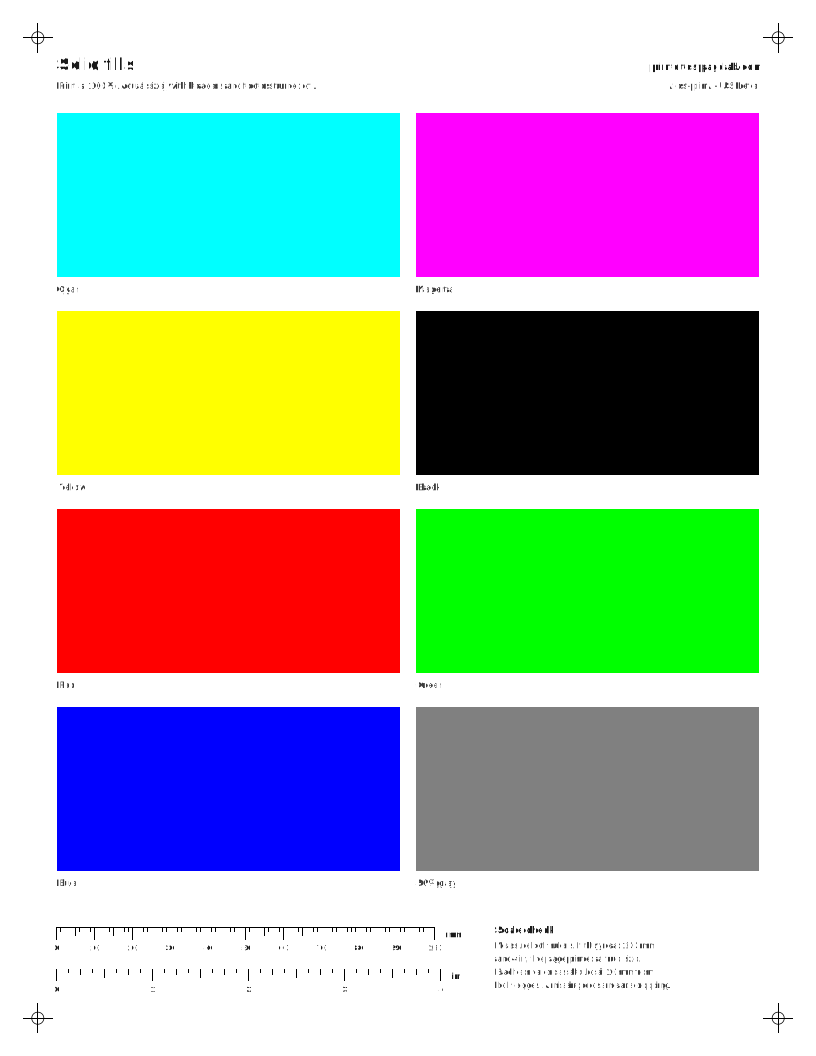
Print the solid fills page to check that the streak is gone.
Lines from a laser or LED printer come from the toner cartridge, drum, fuser or rollers, not from clogged nozzles. Cleaning cycles meant for inkjets will not help.
What to do
Remove the toner cartridge and gently rock it side to side to spread the toner, then put it back.
Print the laser uniformity page to see whether the lines are light streaks or dark marks.
If marks repeat down the page, measure the gap between them with the repeat-defect ruler on the laser page.
Drawn examples, not scans of real prints. Compare them with your printout to pick the closest match.
Clogged nozzlesThin white lines in one color only (here magenta).BandingEven stripes across every color, often from paper feed or print mode.Misaligned headVertical lines print doubled or jagged.Laser streaksA light streak and a dark line running down the page.
What causes a printer to print lines?
A streaking printer usually has one of two kinds of fault. Light or white lines mean ink or toner is missing, which points to clogged nozzles or low supply.[1] Dark lines mean something extra is touching the page, such as a dirty roller. Find the row that matches your page, print the test it names, then try the fix.
What you see
Likely cause
Test to print
First fix
Light or white horizontal lines in one color
That color’s nozzles are partly clogged, or the ink is low[1][2]
Check before you clean. Print a nozzle check to see which color has gaps, run one head cleaning only if it shows them, align the head if lines look doubled, then print a test page to confirm.[3][16] Skipping the check wastes ink on cleanings the printer may not need.
What is printer banding?
Printer banding is a pattern of evenly spaced light or dark stripes that run across the page in every color at once. An inkjet builds the image in passes: the print head sweeps side to side and lays down a strip, then the paper moves forward for the next one. If each strip lands slightly too far from or too close to the last, a thin gap or overlap shows at every join. Common causes are draft or fast quality, a paper type setting that does not match the paper, curled or damp paper, and a head that needs aligning.[6][7][12] Banding is different from a clog. Clogged nozzles leave gaps in one color, while banding repeats in cyan, magenta, yellow and black alike. To check, print a gradient test print at Standard or High quality with the right paper type selected. If the stripes stay, run the head alignment.[17] If even bands still show after that, the paper feed may need service.
Are the lines horizontal or vertical?
On an inkjet, horizontal lines usually point to the print head: clogged nozzles or banding. A printer printing vertical lines usually has a problem along the paper path, such as a misaligned head or ink on a roller, or on a laser, the drum.[10][14] Hold the page the way it left the printer to tell which you have.
The reason is the way the parts move. The head moves side to side while the paper moves forward, so a blocked nozzle draws a gap that runs side to side. Problems that run top to bottom follow the paper as it travels through.
What do light lines vs dark lines mean?
Light lines mean ink or toner is missing from part of the page. Dark lines mean extra ink or toner is landing where it should not. That one difference rules out half the causes before you print anything, so check it first.
Light or white lines: clogged nozzles, low ink, or on a laser, low toner.[1][2]
Dark lines or smears: ink on rollers, a head rubbing curled paper, or on a laser, a scratched drum or dirty fuser.[14][18] If the marks rub off or smear, see printer smudging.
Why is my printer printing lines on pictures?
Photos use far more ink than text, so faint banding that hides in documents shows up in skies and skin. Set the paper type to the photo paper you loaded and choose the highest quality.[7][8] If lines remain, print the gradient test print. Lines in every ramp point to the paper feed; lines in one ramp point to that ink.
Laser printer printing lines?
Laser and LED printers have no nozzles, so inkjet cleaning cycles will not help. Marks that repeat at a fixed distance down the page come from a roller or the drum.[15] Measure the gap and use the laser streaks and repeat-defect ruler. Not sure which kind you have? The inkjet vs laser guide shows how to tell them apart.
Questions people ask
Why is my printer printing horizontal lines?
On an inkjet, thin white or light horizontal lines almost always mean clogged nozzles or low ink. If the lines are evenly spaced across every color, it is banding, often caused by draft quality or the wrong paper type setting.
Why is my printer printing vertical lines?
Vertical lines on an inkjet usually come from a misaligned print head (doubled, jagged edges) or from ink on a roller (a smear in the same spot every page). On a laser printer they usually come from the drum, toner cartridge or a dirty part along the paper path.
Why is my printer printing black lines?
Dark lines mean something is adding toner or ink where it should not: a scratched drum or dirty roller on a laser, or ink on the rollers or head rubbing the page on an inkjet. Light lines mean something is missing, which points to clogs or low supply.
Does printing a cleaning page fix lines?
It can clear light clogs on an inkjet. Run your printer’s nozzle check first so you know which color needs it, and do not run cleanings back to back. Laser printers need different steps.
[3]HP ENVY 6000 All-in-One series User Guide - Fix print quality issues (HP)HP’s print quality steps for the ENVY 6000: check the paper type and Quality Settings in the printer software, check ink levels, align the cartridges, print a diagnostics page and clean the cartridges if the color blocks show white lines or fading.
[4]Canon : PIXMA Manuals : G3000 series : Keeping Print Quality High (Canon)Canon says a print head can dry out or clog if the printer goes unused for a long time, even when capped, much like a capped felt pen. It recommends using the printer at least once a month.
[5]Epson L1300/L1800 User's Guide (CPD-40326) (Epson America)Epson L1800/L1300: if quality does not improve after up to 3 cleanings, turn the printer off and wait at least 12 hours, then check the nozzles and clean again if needed.
[6]White or Dark Lines in Printout (WF-4820/WF-4830 Series User's Guide) (Epson)Epson’s fixes for white or dark lines (which Epson also calls banding): run a nozzle check and clean if needed, match the paper type setting to the paper, load the printable side correctly, turn off high speed settings, align the print head and adjust the print quality.
[7]Clear wide, faded, horizontal lines (banding) appearing on printed documents (MFC-J650DW) (Brother)Brother inkjets, wide faded horizontal lines (banding): paper type and print resolution affect quality. Brother says to change the Media Type from Plain Paper to Inkjet Paper, or from Inkjet Paper to a photo paper setting, and to choose Color rather than Grayscale.
[11]Blurry or Smeared Printout (Epson)Epson’s checks for blurry or smeared printouts: paper not damp or curled and loaded printable side correctly, paper type setting matches the paper, Thick Paper (panel) or Thick Paper and Envelopes (driver Extended Settings) for thick media, remove each sheet as it prints, turn off high speed, and clean the paper path.