Black and White Printer Test Page
This black printer test page is drawn in black and grays only, so it checks black ink or toner in one pass: a solid black block for streaks, gray steps for density and text from 4 to 14 pt for sharpness. If you only need to check that text is crisp, the light-ink sheet does it with almost no ink.
By Printer Test Page LabLast updated
Printed? How did it look?
- Scale: 100% or Actual size, not Fit to page
- Headers and footers: off
- Paper in the tray matches US Letter
What to look for: black and white test page
- The solid black block should be even, with no white lines or streaks.
- You should be able to tell every gray step apart. Steps that merge at the dark end mean heavy ink or toner.
- Small text should be sharp, not fuzzy or doubled.
What to look for: light-ink black and white page
- Lines should be continuous with no breaks.
- Text should be crisp at 6 pt and above.
- Each light gray step should be visible.
What to look for: grayscale ramp
- The smooth gradient should have no visible bands or jumps.
- Large gray patches should look neutral. Many color printers mix gray from C, M and Y, so a tint here points to an unbalanced ink.
What to look for: black test page
- The solid block should be even black with no white lines.
- Every step of the ramp should be visible.
- Fine lines should be unbroken.
What to look for: fine text sheet
- 4 and 5 pt text should still be readable with a magnifier.
- White text on black should not fill in.
- Letters should not look doubled. Doubling points to head alignment.
What to look for: full text page
- Every line should be equally dark from top to bottom and left to right.
- Light bands or missing strips across the text point to clogged nozzles or low toner.
- Lines should run parallel to the paper edge. A slope means the paper fed in skewed.
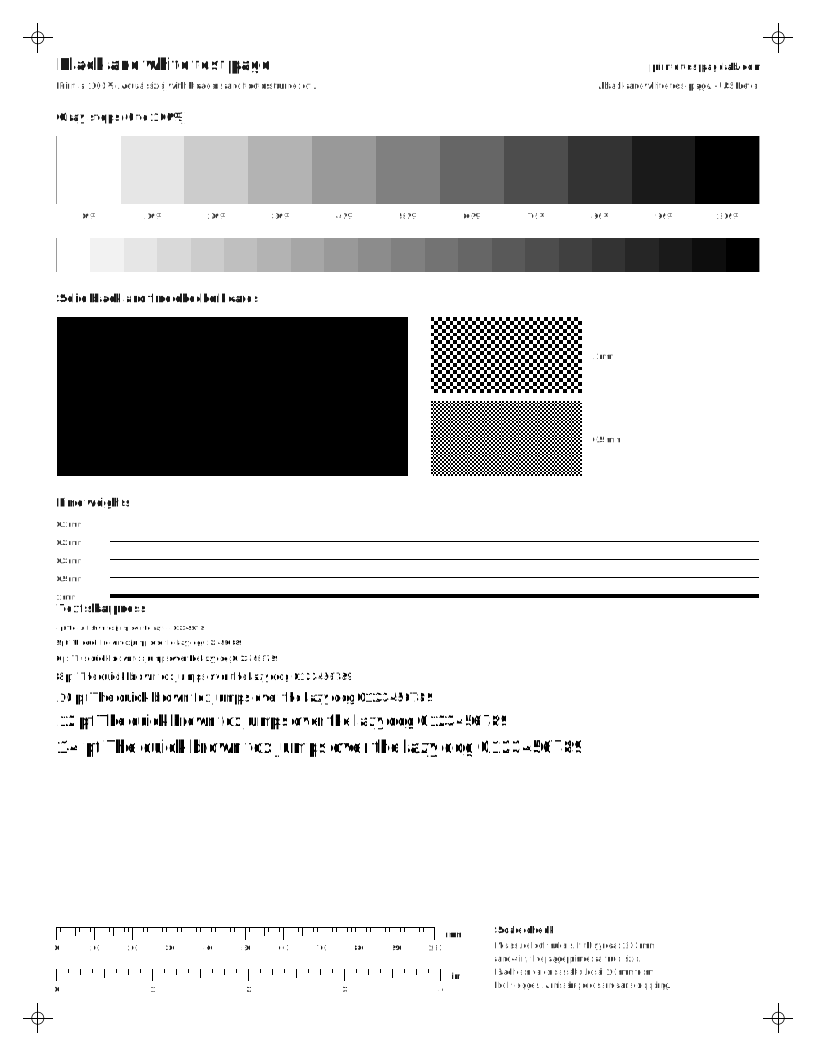
Black and white test pageUS Letter · true size
Steps for your printer brand
Exact menu steps from each maker’s manuals, by model, with sources.
What is a black printer test page?
A black printer test page (or black and white test print) is a sheet drawn only in black and shades of gray, so it checks the black ink or toner without spending color. It is the quickest check before printing documents. The standard sheet here has a gray ramp from 0 to 100% in 10% steps, a finer ramp in 5% steps, a solid black block, checkerboards with 1 mm and 0.5 mm squares, lines from 0.1 to 1 mm, and text from 4 to 14 pt. Like every sheet on this site, it also carries a 100 mm ruler, a 4 inch ruler and a cross 10 mm in from each corner. The same sheet works on inkjet and laser printers, but the faults look different: an inkjet usually fails with thin white lines from clogged nozzles,[1][2] while a laser tends to show streaks, haze or marks that repeat down the page.[3] If black looks fine here but documents print brownish, the driver setting is the likely cause, not the ink. Every sheet is also a black and white printer test page PDF you can download.
What should a good black and white test page look like?
Every part of the sheet should pass the check below. Judge it in daylight or under a bright lamp, and use a magnifier for the smallest text.
| Part of the sheet | What it tests | Pass | A fail usually means |
|---|---|---|---|
| Gray steps, 0 to 100% | Ink or toner density | Every step looks different from its neighbors | Steps merge at the dark end: too much ink or toner. Steps vanish at the light end: too little |
| Solid black block | Streaks and banding | Deep, even black with no white lines or light stripes | Thin white lines across it: clogged nozzles on an inkjet.[2] Light stripes down the page: toner or drum on a laser[4] |
| 1 mm and 0.5 mm checkerboards | Fine detail and ink spread | Squares stay separate | Squares that run together: often ink spreading, so check the paper type setting |
| Lines, 0.1 to 1 mm | Sharpness and gaps | The 0.1 mm line prints unbroken | Breaks in thin lines: clogged nozzles or low toner |
| Text, 4 to 14 pt | Sharpness and alignment | Sharp down to 5 or 6 pt | Doubled or blurry text: head alignment on an inkjet.[5] On a color laser, colored edges or blur: run the printer’s color calibration[6] |
| Rulers and corner crosses | Scale and cropping | 100 mm ruler reads 100 mm and all four crosses print | Short ruler: the page was scaled. Missing cross: part of the page was cut off |
For a closer look at text, the fine text test sheet goes down to 4 pt in three typefaces. Doubled letters are worth checking on the alignment test page.
Why does black print brownish, gray or slightly colored?
Usually because the driver is building black from color inks. Many inkjet drivers have two ways to print without color. “Black ink only” uses just the black cartridge.[7] “Grayscale” may mix cyan, magenta and yellow with black to make smoother grays, often called composite black.[8][9] A composite black looks fine while all three colors are healthy, but if one of them is weak or clogged, black and gray take on a tint: brownish, greenish or purplish.
This page helps you tell the two apart. If the solid block and gray steps print neutral here but your documents look brownish, the grayscale setting in that program is the likely cause. If this page is tinted too, print the color test page to find the weak ink, then run a nozzle check for that color.
Do black faults look different on laser and inkjet printers?
Yes. An inkjet sprays ink through tiny nozzles, while a laser fuses toner from a drum, so the same black block fails in different ways. The table shows what each symptom usually points to.
| What you see on the black block | Inkjet, usually | Laser, usually |
|---|---|---|
| Black prints faint or gray | Low black ink, partly clogged black nozzles, or draft mode[10][11] | Low toner or a toner save setting[12] |
| Thin white lines across the block | Clogged black nozzles: run a nozzle check, then clean the head[2] | Less common; Brother links white lines across the page to the paper type setting or the drum[13] |
| Light or dark streaks down the page | Less common than white lines | The toner cartridge or drum, or a dirty corona wire (laser streaks)[4][14] |
| Marks that repeat at the same gap | Not typical | A spot on one roller or the drum; the gap identifies which[15] |
| Gray haze on the white areas | Not typical | Dust on the cartridge, a hot or humid room, or a worn toner cartridge or drum (dirty pages)[3][16] |
| Black smears or rubs off | Ink not dry yet, or the wrong paper type setting[17] | Toner not fused properly (printer smudging)[18] |
What if black doesn’t print at all?
If the black block is empty while color pages print, black is the problem, not the printer as a whole. Check the level first, then run a nozzle check.[10] The faded printing troubleshooter walks through the rest, including third-party cartridges.
Questions people ask
Why does my printer print gray instead of black?
Usually the black ink or toner is low, the black nozzles are partly clogged, or the print is set to draft or toner save. On some inkjets, choosing “grayscale” makes the printer mix black from color inks, which looks brownish gray.
Does a black and white test page use color ink?
Our black sheets use only black and grays. Whether the printer actually prints grays with black ink alone depends on the driver. If you want to be sure, look for a “black ink only” or “black cartridge only” option in the print dialog.
Is this test page good for laser printers too?
Yes. The solid black block shows streaks and light bands, and the gray steps show toner density. For marks that repeat down the page, use the laser test set on the laser streaks page.
Is there a black and white printer test page PDF?
Yes. The standard, light-ink, grayscale, solid black, fine text and full text sheets each have a free PDF for US Letter and for A4. Choose the sheet and paper size above, press Download PDF, and print it at 100% or Actual size. The PDF library lists every black and white sheet with its file size.
Sources
- [1] Canon : PIXMA Manuals : MX920 series : Examining the Nozzle Check Pattern (Canon)Canon PIXMA MX922: check pattern (1) for missing lines and pattern (2) for horizontal white streaks. Both fine: All A. Problems in either: Also B starts a cleaning.
- [2] My printout has lines running through it. What should I do? (ET-2800/ET-2803) (Epson)Epson's fixes for white or dark lines (banding): run a nozzle check and clean the head if nozzles are clogged, make sure the paper type setting matches the paper, turn off high speed settings and align the print head.
- [3] User Guide HP LaserJet M207-M212 series - Improve print quality (HP)HP LaserJet M207-M212: paper dust on the cartridge causes grey background, vertical dark bands or repeating horizontal bands. Run Cartridge Cleaning Mode from the EWS (System > Service).
- [4] Improve the Print Quality - HL-L2325DW/HL-L2350DW/HL-L2370DW Online User's Guide (Brother)Brother mono lasers, white lines down the page: check for torn paper, sticky notes or dust around the toner cartridge and drum, then replace a damaged toner cartridge or drum.
- [5] Print Head Alignment (Epson)Epson: grainy or blurry prints, misaligned vertical lines, or dark or light horizontal bands may mean the print head needs aligning.
- [6] HP Color LaserJet Pro M454 User Guide - Resolving print quality problems (HP)HP Color LaserJet Pro M454: calibration can help fix misaligned color, colored shadows and blurry graphics.
- [7] HP ENVY 6000 All-in-One series User Guide (HP)HP's ENVY 6000 guide says Black & White or Black Ink Only uses only the black ink, for normal or lower quality black and white prints.
- [8] HP ENVY 6000 All-in-One series User Guide (HP)HP's ENVY 6000 guide says High Quality Grayscale uses ink from both the color and black cartridges to make a wider range of black and gray tones.
- [9] Printing a Color Document in Monochrome - G3010 series (Canon Inkjet Manuals)Canon's inkjet driver manuals note that with Grayscale Printing turned on, inks other than black may also be used.
- [10] HP ENVY 6000 All-in-One series User Guide (HP)HP's print quality steps for the ENVY 6000: check the paper type and print quality settings in the driver, check the estimated ink levels, align the cartridges, print a diagnostics page, then clean the cartridges.
- [11] HP ENVY 6000 All-in-One series User Guide (HP)HP describes Draft as the lowest print resolution, typically used when ink is low or high quality is not needed.
- [12] Improve the Print Quality - HL-L2325DW/HL-L2350DW/HL-L2370DW Online User's Guide (Brother)Brother mono lasers: if the whole page is too light, Toner Save may be on. Other fixes for faint print are a new toner cartridge, cleaning the drum and corona wire, or a new drum.
- [13] Improve the Print Quality - HL-L2325DW/HL-L2350DW/HL-L2370DW Online User's Guide (Brother)Brother mono lasers, white lines across the page: set the right media type, print several blank pages (especially after a long idle period), clean the drum, or replace a damaged drum.
- [14] Improve the Print Quality (Online User's Guide HL-L2325DW/HL-L2350DW/HL-L2370DW/HL-L2370DWXL) (Brother)Brother HL-L2325DW/L2350DW/L2370DW, black lines down the page: clean the corona wire by sliding the green tab and make sure the tab is back in Home position. Otherwise replace the toner, then the drum. The fuser may be contaminated, so contact Brother.
- [15] B3340, B3442, M1342, MS331, MS431, MS439 Printers User's Guide - Repeating defects (Lexmark)Lexmark B3340/B3442/M1342/MS331/MS431/MS439 repeat distances: imaging unit 96 mm or 37.7 mm; toner cartridge 43.5 mm or 37.5 mm; transfer roller 52 mm; fuser 79.8 mm or 62.5 mm. Transfer roller or fuser matches mean contact Lexmark support.
- [16] Improve the Print Quality (Online User's Guide HL-L2325DW/HL-L2350DW/HL-L2370DW/HL-L2370DWXL) (Brother)Brother HL-L2325DW/L2350DW/L2370DW, grey background: check the room (heat and humidity add background shading), clean the drum, then replace the toner cartridge, then the drum unit.
- [17] Blurry or Smeared Printout (Epson)Epson’s checks for blurry or smeared printouts: paper not damp or curled and loaded printable side correctly, paper type setting matches the paper, Thick Paper (panel) or Thick Paper and Envelopes (driver Extended Settings) for thick media, remove each sheet as it prints, turn off high speed, and clean the paper path.
- [18] Improve the Print Quality - HL-L2325DW/HL-L2350DW/HL-L2370DW Online User's Guide (Brother)Brother mono lasers, poor fixing: make sure the back-cover levers are up and the media type matches the paper, then turn on Improve Toner Fixing or choose a thicker media type.
Checked 2026-10-13. Maker manuals describe specific models; menu names and options vary on other printers.